
Voxel art is 3D pixel art. Instead of pushing and pulling meshes like you would in Blender or Maya, you stack little cubes — voxels, short for "volumetric pixels" — on a grid until a shape appears. It's the same instinct that makes LEGO addictive, and it's one of the friendliest ways to get into 3D. There's no topology to worry about and no UV unwrapping — and generally speaking, a voxel model is usually far easier on your GPU than a complex curved mesh, so you can model and render smoothly even on modest hardware.
That low barrier is exactly why so many artists and game developers start here. You can go from opening a blank canvas to rendering a clean little scene in an afternoon. Below is a practical, do-it-in-order roadmap to get you from zero to your first shareable render.
Step 1: Get the tool — MagicaVoxel
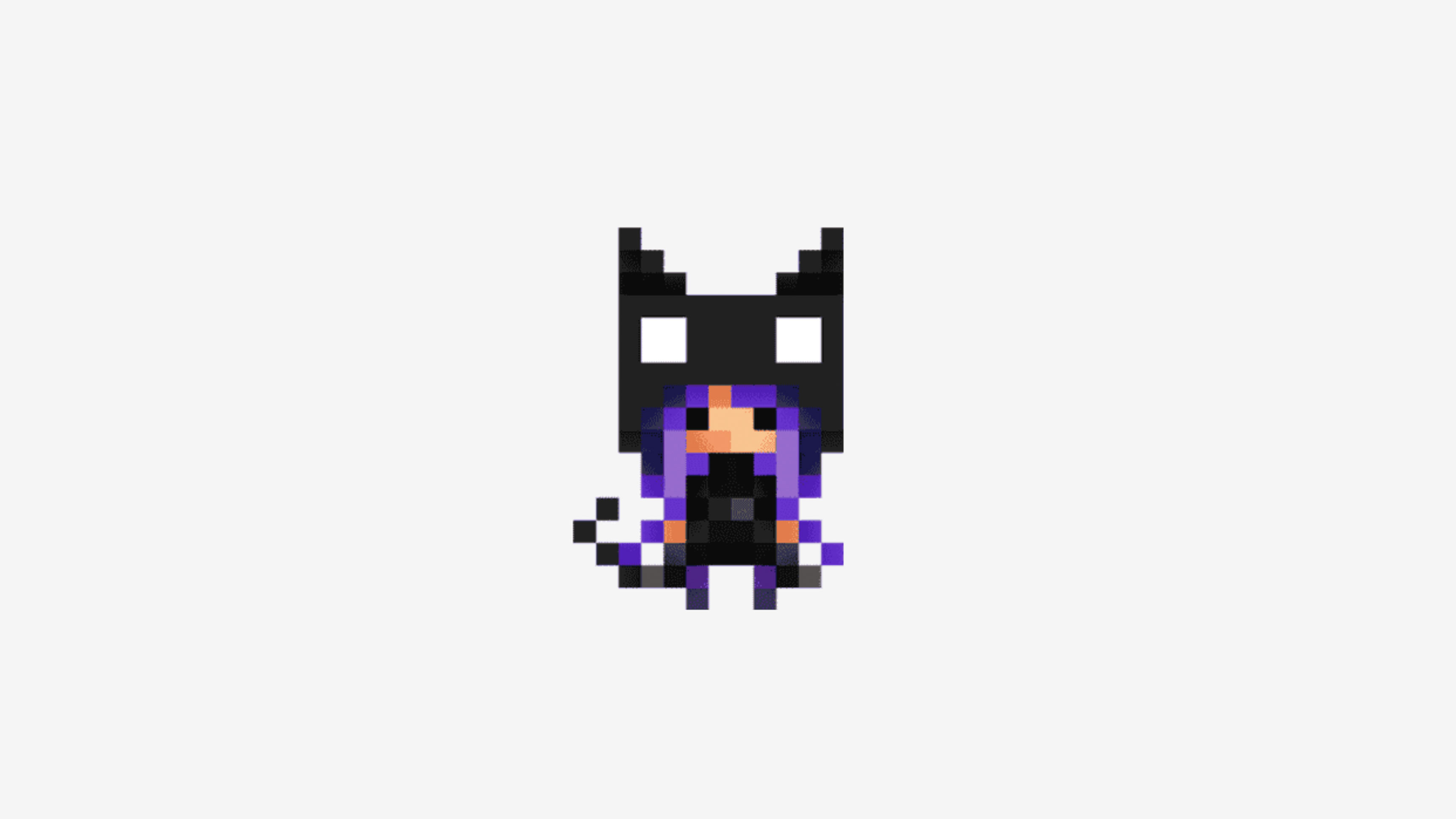
The overwhelming majority of the voxel art you've admired online was made in MagicaVoxel, a free editor built by an independent developer who goes by ephtracy. It's the default recommendation for beginners for three reasons:
- it's free with no strings
- it's tiny (the download is a few megabytes and needs no installer)
- it ships with a built-in GPU path-tracing renderer.
That last part matters: you can model and produce a polished, softly-lit final image without ever leaving the app or learning a separate render engine.
Download it from the official source only: https://ephtracy.github.io/
Avoid the third-party "download" sites that show up in search — they wrap the same free files in ads and installers. The recent 0.99.7 builds added frame-by-frame animation, larger model sizes (up to 256×256×256 per object), and faster rendering, so grab the latest version listed on that page.
It runs on Windows and macOS. If you're on an Intel Mac or older system, ephtracy's page has separate builds for different macOS versions — pick the one matching yours.
Other voxel tools knowing about:
- Qubicle — a paid editor (~$25 for the indie license) popular with game studio and its export options make it a favorite for getting models into a game engine via Maya or Blender.
- Blockbench — free, open-source, and beginner-friendly, with a browser version so there's nothing to install. It's really a low-poly/cubic model editor (the go-to for Minecraft models and game assets) rather than a pure voxel painter, but it overlaps heavily and is worth a look once you're comfortable.
- Vengi — free and open-source voxel tools with animation support, plus a command-line converter that reads and writes just about every voxel format. More technical and less hand-holdy than MagicaVoxel; great once you want to script or convert between formats.
- Goxel (free, open-source, also runs on mobile and in-browser)
- Mega Voxels a free mobile app, fun for tablets.
Start with MagicaVoxel. You can always branch out once you know what you're missing.
Step 2: Learn the interface (don't skip this)
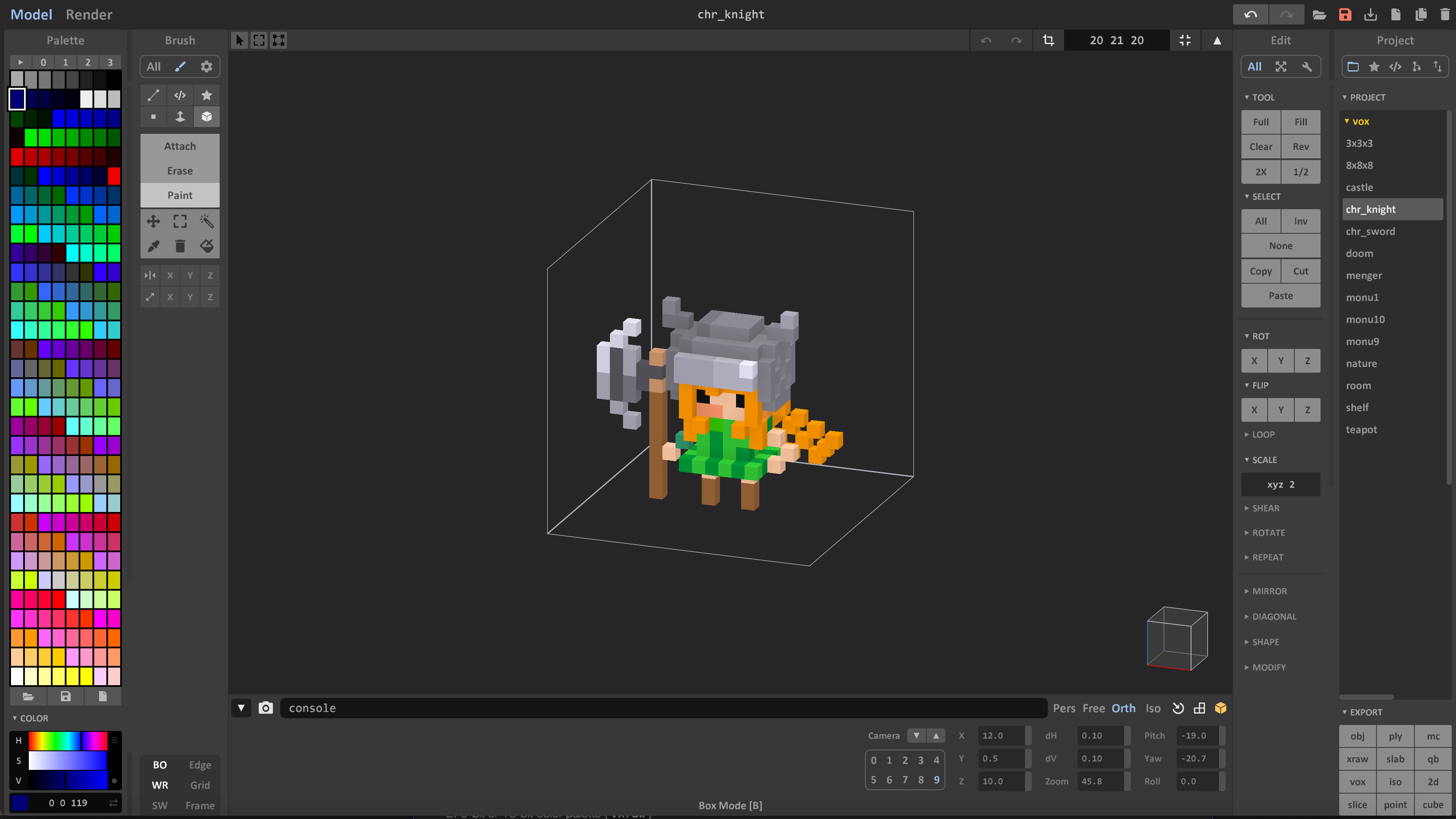
MagicaVoxel's UI looks dense — a wall of tiny buttons and two viewport modes that intimidate everyone at first. But the tool itself is genuinely accessible once you get past that first impression: the core loop is just "pick a color, place a cube," and you can make something decent within an hour of opening it. You don't need to understand every button to start. Two things get you comfortable fast:
Use the tooltips. Hover over any button and a line of text at the bottom of the window tells you what it does and its keyboard shortcut. Building your shortcut memory early is the single biggest speed unlock.
Watch a channel that teaches the tool, not just the art. Two of the most recommended:
- ArtChanny's channel — clear, tool-focused MagicaVoxel tutorials that walk through the actual buttons and workflows rather than time-lapsing past the parts you need.
- Pedro Casavecchia — his Mastering MagicaVoxel series is a proper free course, simple and clearly structured, covering everything from the basics up through materials, rendering, and animation.
Pick one, watch an intro video with the app open beside you, and build along.
The two views you'll live in: Model (where you place and edit voxels on a single object) and World (where you arrange multiple objects into a full scene). Knowing which mode you're in solves about half of all beginner confusion.
Step 3: Start small
The most common way beginners quit is by opening MagicaVoxel and immediately trying to build a detailed character or a sprawling city, getting overwhelmed, and closing it. Don't do that.
Zach Soares, one of the best-known voxel artists working today, gives the same advice to everyone starting out: make what you see, and start little by little. Go for a walk, take a photo of something ordinary, and rebuild it out of cubes. His own first pieces were things like a parking lot. Nothing special — and that's the point.
Concrete first projects, roughly in order of difficulty:
- A single potted plant or a coffee mug (teaches basic shapes, color, and how few voxels you actually need)
- A tree or a mushroom (teaches organic-ish forms and palette)
- A small isometric room — a bed, a rug, a window (teaches scene composition and lighting)
- A food item — a slice of cake, a sushi roll, a burger (a hugely popular voxel genre, and forgiving)
- A tiny building or house exterior
Keep your canvas small. A model that's 32 voxels across forces good decisions; a 256-wide canvas invites you to add noise you'll later delete. Constraints are your friend here.
This isn't just beginner advice — it's how the best work gets made. Look at Mari (MadMaraca), one of the most recognized voxel artists around and firmly at the complex end of the spectrum: intricate, dense, jaw-dropping scenes. And yet if you watch her process (her feed on X is a masterclass in this), she starts every one of those pieces the same way you should start yours — blocking out big, simple volumes first, getting the silhouette and proportions right, and only then adding detail. The complexity is the last 20%, not the first move. Starting small isn't a compromise you make because you're new; it's the actual professional workflow. Block out, then refine. Every time.
Follow artists for inspiration
Surrounding yourself with great work quietly raises your own bar. Build a feed of voxel artists and check it the way you'd check anything else. A few excellent people to follow:
- Mari (MadMaraca) — madmaraca.art · @MadMaraca on X — the complex end of the spectrum, and (as above) a great study in how even the most detailed pieces start from simple blocked-out volumes
- Shintaro Fukuzawa — @shintarofukuzawa — a Japanese designer/illustrator whose voxel work is clean, characterful, and endlessly studyable
- Dima's Voxel — @dimasvoxel — polished, detailed scenes worth reverse-engineering
- Tom Girou (kaikina) — kaikina.artstation.com — minimal yet richly detailed voxel environments; his ArtStation albums are worth scrolling slowly. Very zen
- Zach Soares — @voxelzach · @Voxels — clean, game-ready characters and animation
Beyond individuals:
- Search the #voxelart and #magicavoxel hashtags on Instagram or Pinterest or Google.
- The r/VoxelArt subreddit — reddit.com/r/VoxelArt — for feedback, WIPs, and community
- The MagicaVoxel Discord — a welcoming community for sharing work and talking art, tools, and technique. And if you're genuinely stuck after searching the usual online resources, this is the place to ask to get help from the masters.
When you see something you love, don't just admire it — try to rebuild it while making it your own. Copying to learn is how nearly every (voxel) artist got good.
A handful of tips that pay off early
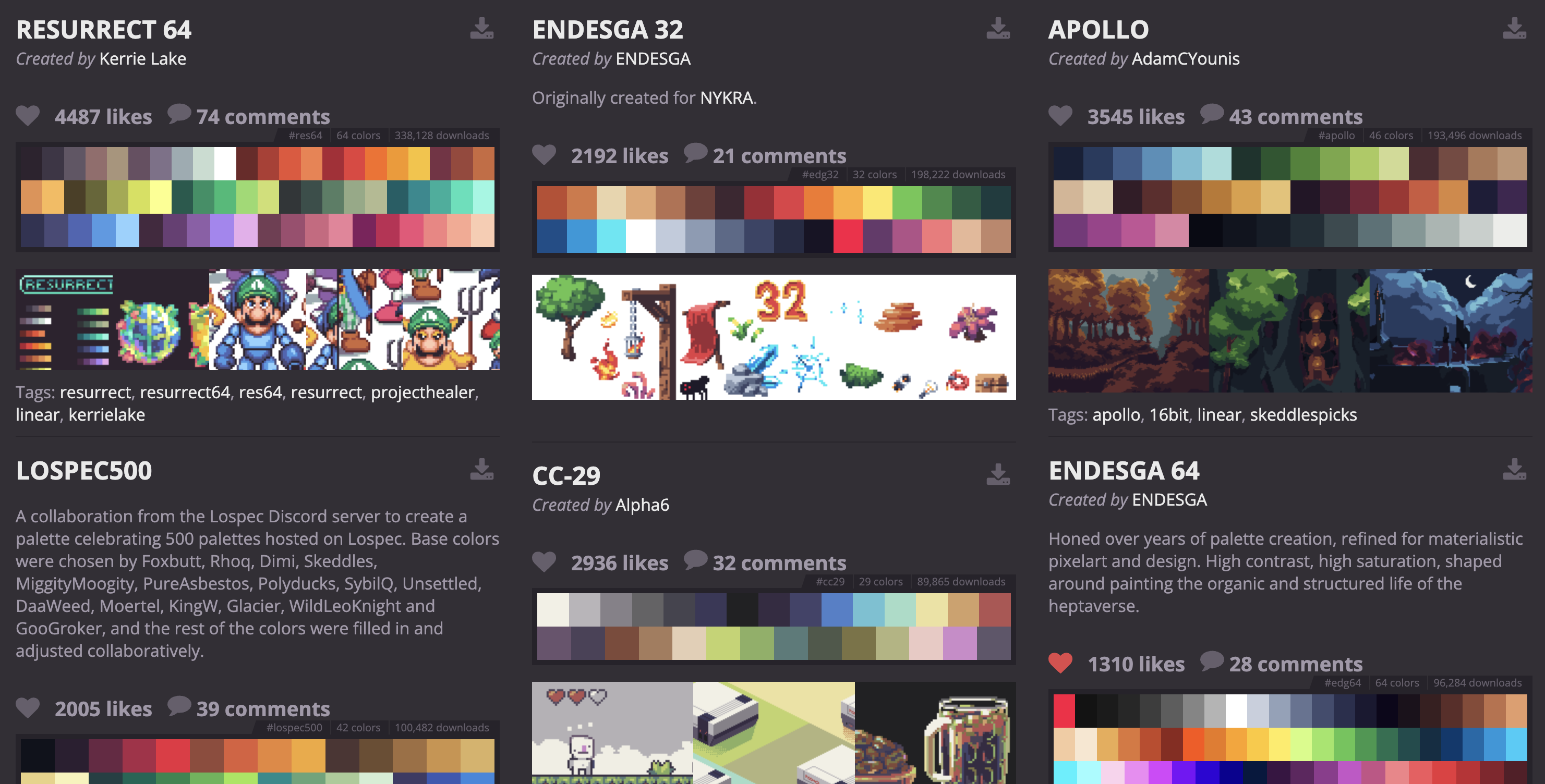
- Discipline your palette. MagicaVoxel gives you 256 color slots, but fewer, well-chosen colors almost always look better than many. Study the palettes of artists you like, then build your own — or borrow good ones. Lospec Palette List is a great starting point: 4,000+ curated palettes made by and for pixel/voxel artists, each downloadable and importable straight into MagicaVoxel (the site even has MagicaVoxel-specific import instructions).
-
Use multiple volumes — don't cram everything into one. In MagicaVoxel, resist the urge to build your whole scene inside a single object. Break it into separate volumes (objects) in World mode — the character as one, the ground as another, each prop as its own. This keeps every piece independently movable, rotatable, duplicable, and re-lightable, makes edits far less destructive, and sidesteps the 256x256x256 voxels per-object size limit entirely. A scene built from many clean volumes is dramatically easier to work with than one giant block you have to surgically edit.
-
Use layers. Select your volumes and assigns them into layers (character, ground, props) so you can hide, edit, and re-light pieces independently.
-
Learn materials. Assigning a material like metal, emit (glow), or glass to a color changes how it renders without changing its hue. This is where flat models start looking rich.
-
Spend time on lighting and render. A mediocre model with thoughtful lighting beats a great model rendered flat. Play with the sun angle, background color, and a key light.
-
Finish things and share them. A finished small piece teaches you more than an abandoned ambitious one. Post it. The feedback loop is the whole point.
Your first week
A simple plan to actually build momentum:
- Day 1 — Download MagicaVoxel. Watch a tutorial. Poke every button.
- Day 2 — Build a mug or a potted plant. Render it. Save it.
- Day 3 — Build a tree or a mushroom. Focus on palette.
- Day 4 — Build a small isometric room. Focus on composition.
- Day 5 — Rebuild a simplified version of a piece from an artist you follow.
- Day 6 — Redo your Day 2 model now that you know more. Notice the jump.
- Day 7 — Pick your favorite of the week, spend real time lighting and rendering it, and post it somewhere.
Do that and you'll have seven finished pieces and a genuine feel for the medium — which is further than most people who "want to try voxel art" ever get.
The 256x256x256 voxels bounding volume is the limit. Let's go!
Quick resource list
| Resource | Link |
|---|---|
| MagicaVoxel (official download) | https://ephtracy.github.io/ |
| MagicaVoxel Community | https://x.com/MVC_discord |
| Blockbench (cubic/low-poly editor) | https://www.blockbench.net/ |
| Vengi (open-source voxel tools) | https://vengi-voxel.github.io/vengi/ |
| ArtChanny — MagicaVoxel tutorials | https://www.youtube.com/@ArtChanny97 |
| Pedro Casavecchia — Mastering MagicaVoxel | https://www.youtube.com/c/PedroCasavecchia |
| Zach Soares (Instagram / X) | https://www.instagram.com/voxelzach/ · https://x.com/voxels |
| Mari / MadMaraca | https://madmaraca.art/ · https://x.com/MadMaraca |
| Shintaro Fukuzawa (Instagram) | https://www.instagram.com/shintarofukuzawa/ |
| Dima's Voxel (Instagram) | https://www.instagram.com/dimasvoxel/ |
| Tom Girou / kaikina (ArtStation) | https://kaikina.artstation.com/ |
| Lospec Palette List | https://lospec.com/palette-list |
| r/VoxelArt community | https://www.reddit.com/r/VoxelArt/ |
Now go make something out of cubes — a coffee mug, a summer drink, whatever's lying on your desk right now. Start small — that's the whole game.